ChatGPT Update:
Tired of switching between dozens of different tools for editing photos, video, and music? Artificial intelligence is taking the next big step, turning itself into an all-in-one platform. After the latest major update, ChatGPT isn't just a text model anymore – it's become an operations hub that eliminates the need for a pile of separate software. In this guide, we'll look at how the new "Explore apps" feature works and how you can use Adobe Photoshop directly inside the chat interface. Marketing and AI expert Etien Yanev, who has trained more than 40,000 people and leading companies in Bulgaria, demonstrates how these updates dramatically boost productivity.
 Етиен Янев
3 min read
updated on 20 August 2026
Етиен Янев
3 min read
updated on 20 August 2026

What is ChatGPT’s new “Explore Apps” feature?
ChatGPT is turning itself into an App Store-like ecosystem. Instead of copying files around and opening heavy programs, you can now connect your favorite apps directly to your OpenAI account.
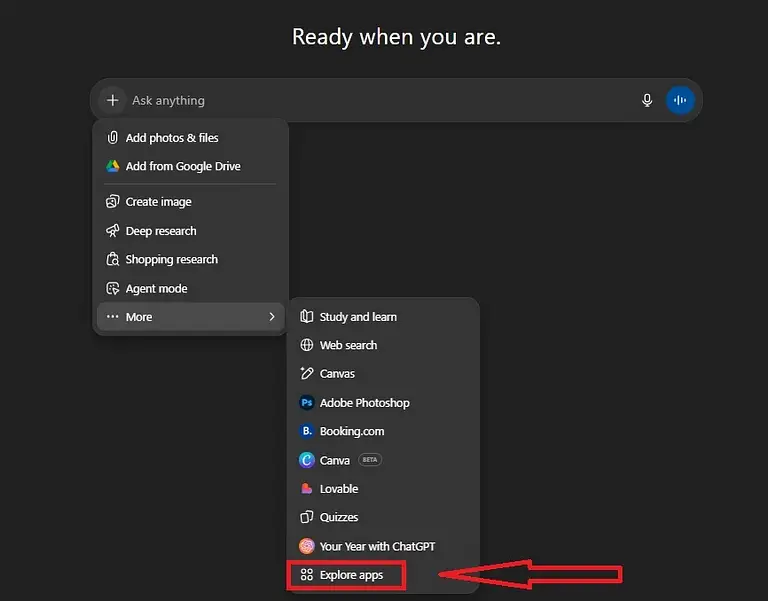
This feature is available through the menu that appears when you click the plus icon (+) and select “More” → “Explore apps.” The integration lets the chatbot communicate directly with outside software, carrying out complex commands in seconds.
How to connect and use Photoshop in ChatGPT: step by step
One of the most useful new integrations for designers and marketers is the one with Adobe Photoshop. Here’s how to activate it, following the tips from Etien Yanev’s video:
1. Installing the app
- Click the “Plus” (+) icon in the chat box.
- Select “Explore apps.”
- Find Photoshop in the list and hit Connect. You’ll need to confirm access with a couple of clicks.
2. Activating it correctly in your prompt
To make sure ChatGPT actually uses Photoshop for your task, and not the built-in DALL-E 3 or some other tool, use a special command.
Expert tip: always start your request with the @ symbol, followed by the app’s name. Example: type @Photoshop before giving your instruction.
3. Real-time image editing (examples)
Once the integration is set up, you can upload a photo and give it instructions in plain language. Here are two key examples of AI photo editing:
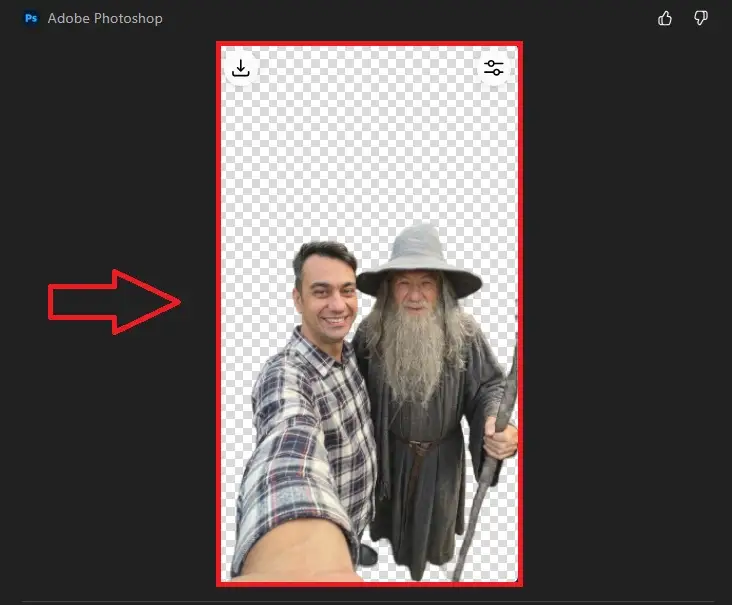
- Remove Background: upload an image and type: “Remove the background.” ChatGPT connects to Adobe’s cloud, cuts out the subject precisely, and returns a file ready to download.
- Background Blur: you can ask it to “Blur the background.” The result is a professional-looking defocus effect. The system often provides an interactive slider too, letting you adjust the strength of the effect right in the chat, without ever opening Photoshop.
Why does ChatGPT’s app integration matter?
Using Photoshop through ChatGPT saves time and technical effort. You don’t need a powerful computer capable of running Adobe’s heavy software just to make a quick edit. That makes AI the ideal assistant for:
- Social media content creators.
- Marketers who need visuals fast.
- Online store owners (for product photography).
Frequently Asked Questions (FAQ)
1. Is the Photoshop feature in ChatGPT paid?
2. Can I use apps other than Photoshop?
3. Does image quality stay intact?
Enjoyed this article? Share it with colleagues, or subscribe to the newsletter to get more AI tips and tutorials from Etien Yanev.
More from the blog
All articles